
Can I add or remove product in my order?Updated 2 months ago
If your order is unfulfilled, please contact our customer service team as soon as possible, and we will check the status of your order.
If your order has been fulfilled, there is no guarantee we can stop the order from shipping.
To manage/edit an upcoming order, sign in to your customer portal and select "Manage Subscriptions" on the left. On the next page, scroll down to the details for "Your next order":
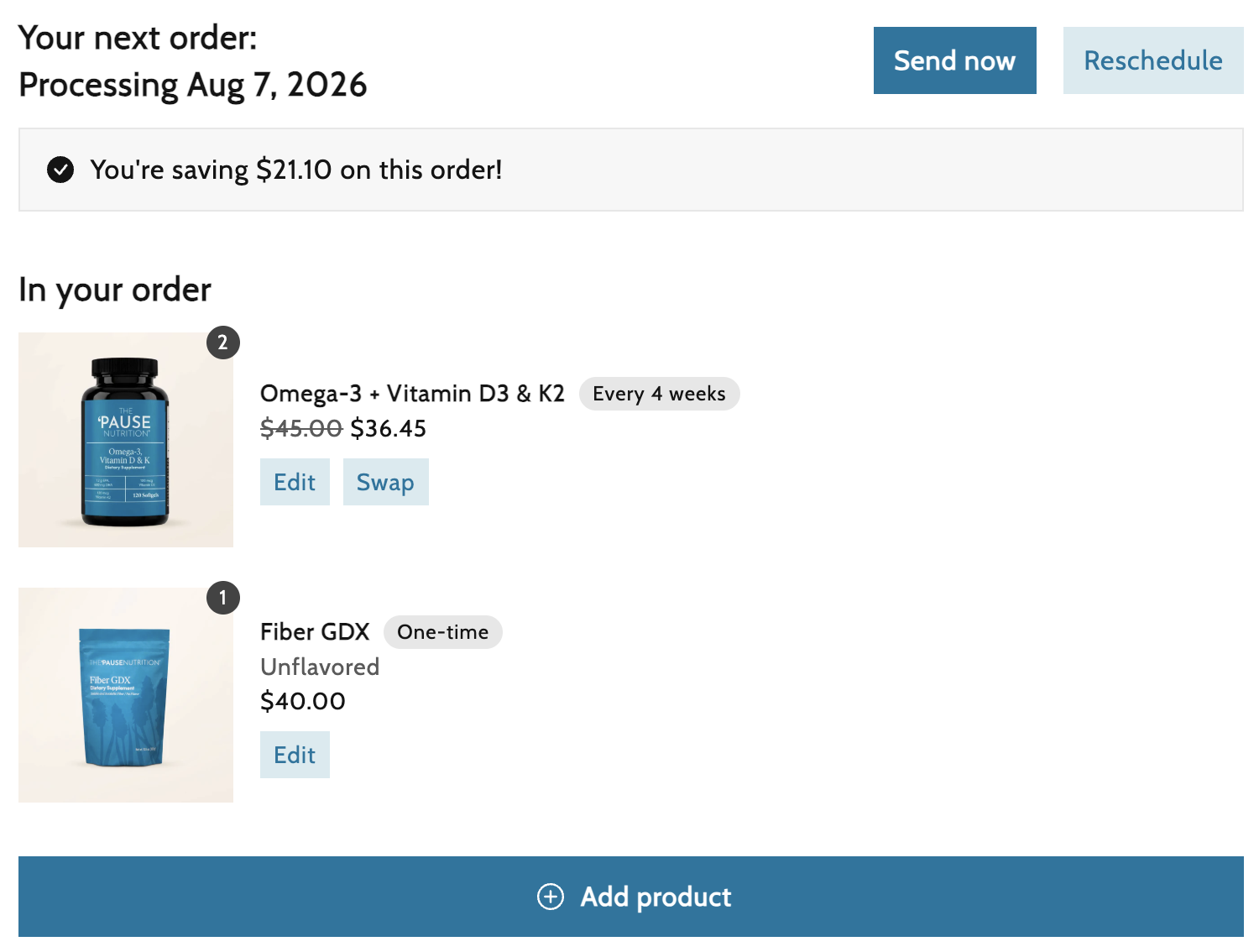
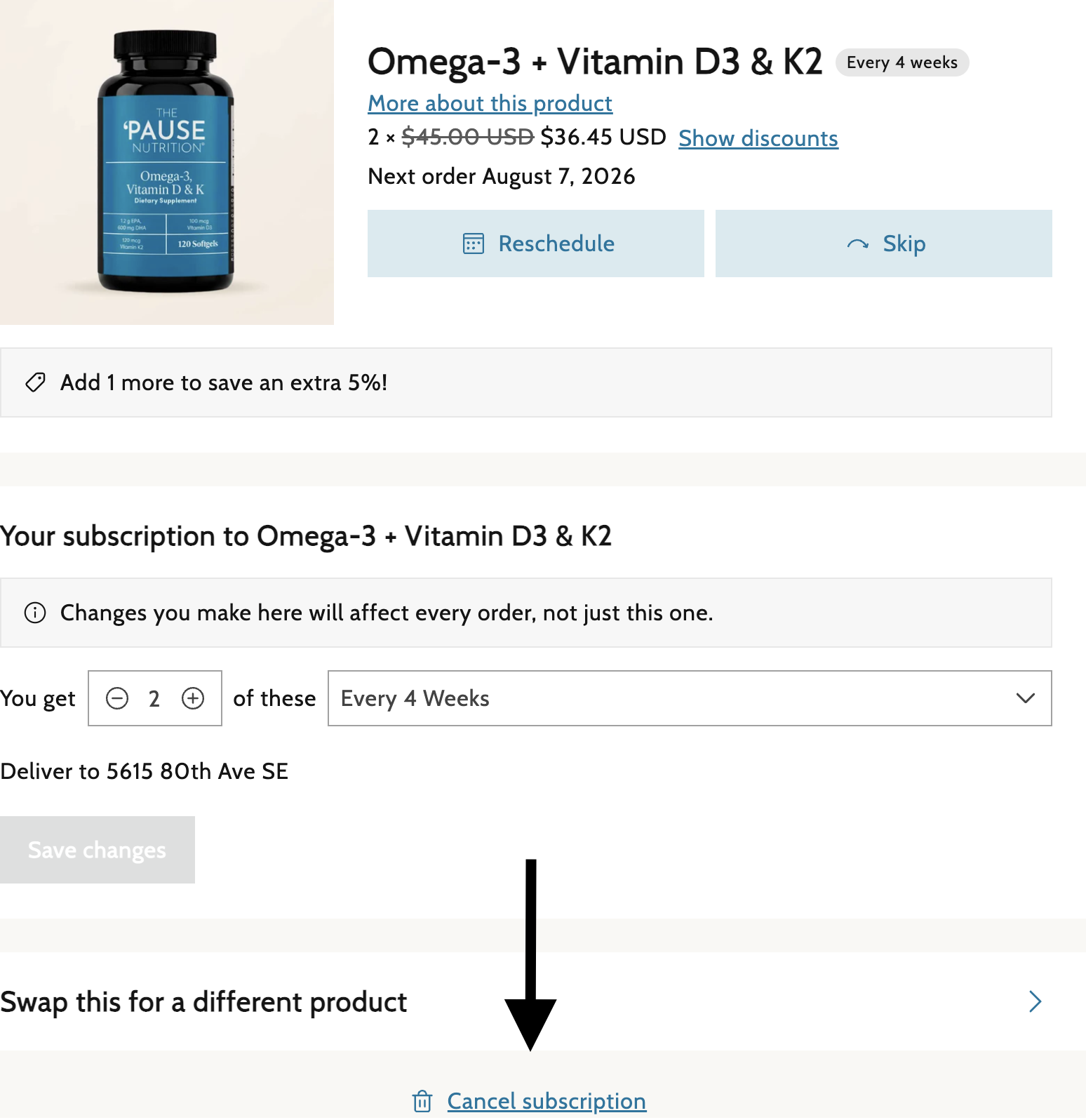
- To change individual items/products to be received in the next order, select "Edit" next to that product. You will then be taken to a page where you can manage that specific product and edit the quantity or delivery schedule.
- If you change frequency or quantity, please make sure to click "Save Changes" at the bottom.
- If you change frequency or quantity, please make sure to click "Save Changes" at the bottom.
- Select "Reschedule" or "Skip" to remove the product from the next order and select a different delivery date.
- To cancel the subscription for that product and remove it from your upcoming order, select "Cancel Subscription" at the bottom.
If you need assistance, please contact our Customer Service Team.